- Dispatch
- Team planning
- Work orders
Assigning work to technicians and teams: priorities, statuses and a daily routine
How a small service team decides who does what, and in which order: assigning to people and teams, priorities, and using en route, in progress and on hold properly.
· 6 min read
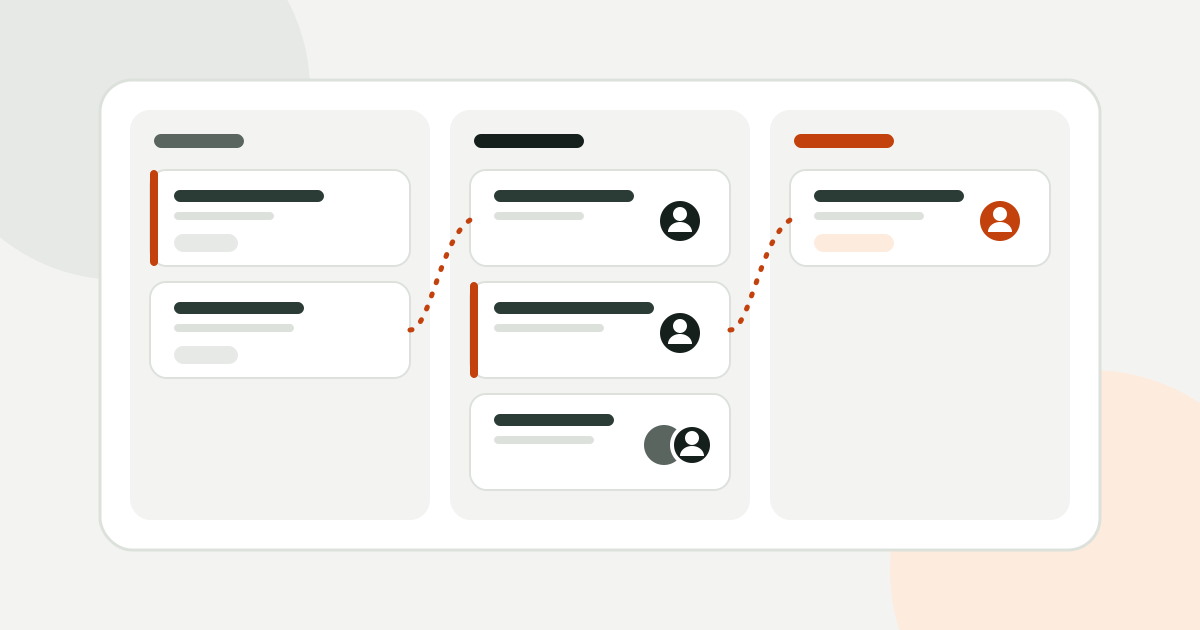
At a service company with eight technicians, the person in the office starts the day at nine with a list, twelve WhatsApp messages and three paper forms left over from yesterday. They hand out the jobs. Around noon an urgent call comes in and someone’s route changes. In the evening the phone comes out again to find out which jobs got done and which are waiting for parts. Nobody is doing anything wrong, but “who has this job, and where is it now?” has no single answer.
This guide covers how to organise assignment and team planning in a small or mid-sized service team.
1. Assign to a person or a team?
There are two kinds of assignment and you need both.
To a person. The job belongs to one technician. Most breakdown calls work like this: the fridge fault at the restaurant in Kadıköy goes to Murat.
To a team. The job goes to a group, and who actually does it is decided on site or by the team lead. This suits preventive maintenance, larger installations and maintenance crews on shifts. Saying “the 60 split units at this hotel belong to HVAC Crew 1” is more realistic than tying each job to a name.
If more than one person works on a job, make one of them the lead. When two technicians go out to a chiller fault together, it should be clear who fills in the checklist, who talks to the customer and who closes the job.
When team membership changes, open jobs assigned to the team should show up for the new member and drop off the list of the one who left. Tracking that by hand is the easiest way to lose jobs.
2. An employee is not a user account
Not every technician has the app on their phone. A subcontractor, a senior technician two years from retirement who does not use a smartphone, or a seasonal helper still take jobs. So define employees separately from user accounts: name, phone, region, which kinds of work they do. You should be able to assign work to an employee without an account and let the office move the job along for them. If they later want the app, an invitation links them to an account.
3. Keep priorities few and clear
Five- or six-level priority schemes do not survive on site; everything ends up “high”. Four levels are enough, as long as each one is written down:
| Priority | Meaning | Example |
|---|---|---|
| Urgent | Safety, stopped work or lost stock; go today | Cold room temperature rising |
| High | Disrupts work but does not stop it | One of three ovens not working |
| Normal | Planned work or a fault that can wait | Preventive maintenance |
| Low | When convenient | Replacing labels |
Use a due date alongside priority. If a “high” job has been waiting three days, it is more useful to see that it is past its due date than to bump its priority. The office should look at overdue and urgent jobs first every morning, then at unassigned ones.
4. Use statuses that tell the truth
A work order’s status should tell the office what it wants to know without ringing the technician. A sequence that works:
- New: the job exists, nobody has it yet.
- Assigned: a person or team is set.
- En route: the technician is on the way.
- In progress: the technician is at the unit.
- On hold: the job has stopped; waiting for parts, customer approval or access.
- Done: the technician closed the job.
- Approved: the office or the customer checked it.
- Cancelled.
Two of these are especially valuable. En route means the office has an answer when the customer calls to ask “when will they get here?”, and it is how you measure response time: the gap between the job being opened and the technician setting off. On hold should say why the job stopped. “On hold” on its own is not enough; define sub-statuses like “Waiting for parts”, “Waiting for customer approval” or “No access”. Only then can you see at the end of the month how much work was held up by parts.
Do not leave transitions free either. An unassigned job cannot be in progress; a finished job can only be reopened by someone with the right to do so. These rules look strict at first, but they are the only way your reports come out right.
5. A daily routine
A simple day that works for a team of eight:
- Morning, 15 minutes. The office looks at overdue, urgent and unassigned jobs. Assignments are made and each technician sees their own list on their phone.
- During the day. The technician sets “en route” when leaving and “in progress” on arrival. If a part is needed, they raise the request from inside the job and the job moves to “waiting for parts”.
- When an urgent job comes in. The office sees on screen who is on which job and assigns it to the nearest or best-suited person. No chain of phone calls.
- Evening, 10 minutes. Finished jobs are reviewed and approved; the reasons behind jobs on hold are checked.
A paper version of this routine is possible. But unless the answer to “where is this job now?” lives somewhere everyone can see, rather than in a technician’s pocket, the same phone calls happen every day.
6. Measure labour time properly
Have labour time recorded when the job closes. The easiest way is the time from starting the job to closing it, minus the time spent on hold. The two days spent waiting for a part are not labour. The technician should be able to correct the figure where needed.
How this works in Saha
In Saha employees and teams are defined separately from user accounts. You can assign work to an employee without an account, and an invitation links one later. A work order is assigned to one or more employees (one of them the lead) and, if you like, a team; jobs assigned to a team follow its membership. On assignment the technician gets a notification on their phone, and the app shows the jobs assigned to them directly or through their team and keeps working without a connection.
Priorities are low, normal, high and urgent, and a work order has a planned start and a due date. Statuses run in fixed categories (new, assigned, en route, in progress, on hold, done, approved, cancelled), and transitions are checked against those categories. Your company adds its own statuses inside them; “Waiting for parts” comes ready, and if you choose, opening a part request moves the job there by itself. The dashboard shows counts of open, today’s, urgent, waiting for parts, overdue and unassigned jobs. Labour time defaults to the time from start to finish, minus the time spent on hold.
A quick review
- Is every job assigned to a person or a team, with a lead on shared jobs?
- Do you have four priority levels or fewer, each with a written meaning?
- Are “en route” and “on hold” actually used?
- Can you see why jobs on hold are waiting?
- Does the office know who is doing what without picking up the phone?
A good assignment routine mostly gives the office phone a rest. Saha is free for 60 days with no card required; create a free account and hand out your first jobs today.