- Mikro integration
- Mikro ERP
- Field service software
Mikro ERP integration for field service and maintenance: customers, devices and staff in one place
Mikro ERP integration for service companies on Mikro Jump, Fly, Run, V16 and V17: how customer accounts, serial-numbered devices, maintenance data and personnel come into Saha.
· 5 min read
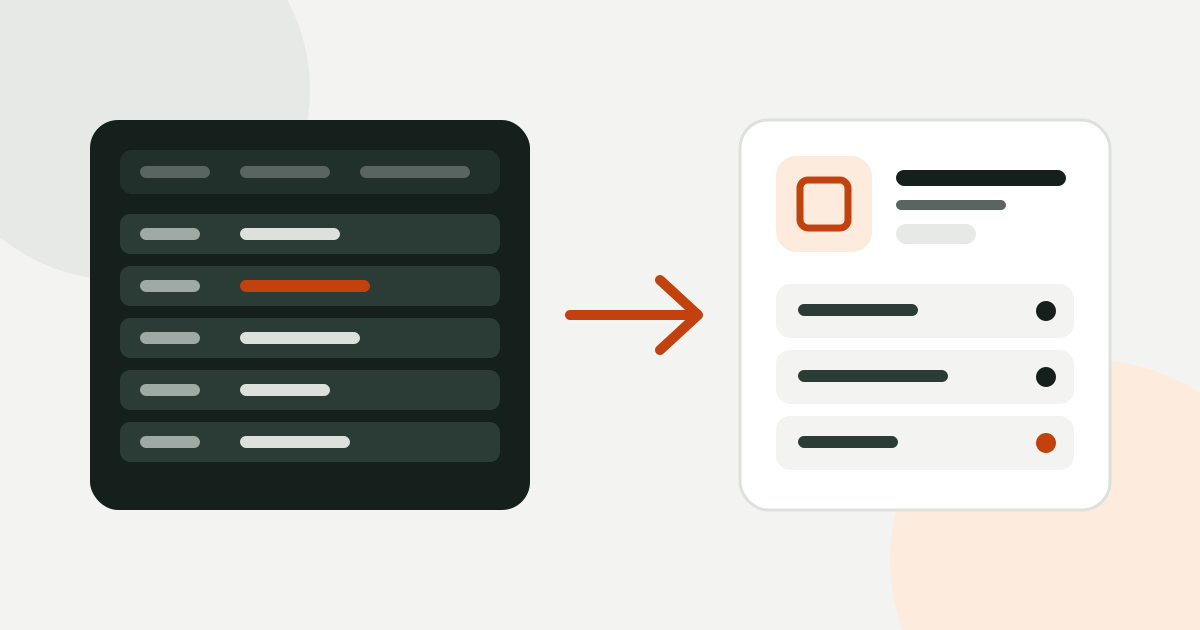
Many technical service companies in Turkey already keep their customer list, the serial numbers of the units they sold and their personnel records in Mikro. Invoices go out of Mikro, customer accounts live in Mikro. The work in the field, though, meaning faults, work orders, checklists, photos and parts, often runs on spreadsheets, messaging groups or paper forms. Mikro ERP integration brings the two together: Saha reads customer accounts, device cards, maintenance data and personnel from Mikro; the service work runs in Saha, and the accounting stays in Mikro.
This post covers what Saha’s Mikro integration brings over, how the connection is set up and why a service company on Mikro would want it. Each topic has its own post with the details.
1. Why field service software that works with Mikro?
When the service tool and the ERP live apart, the same information is typed twice. A new customer is opened in Mikro, then entered again in the service tool. The unit’s serial number is on the sales invoice, but nobody can find it when a fault comes in. Someone leaves the company; HR closes their record in Mikro, and the service tool still offers them for new jobs. The two copies drift apart and nobody knows which one is right.
With field service software that works with Mikro, the source is clear: customers, devices and staff are created in Mikro, and Saha reads them. The office does not type the same record twice; every unit is known by its serial number, and its service history builds up under it.
2. What comes from Mikro into Saha
| In Mikro | In Saha | Details |
|---|---|---|
| Customer accounts (cari) | Customers, each with a main location from its address | Customers and device cards |
| Device cards (serial number and stock code) | Assets at the customer’s location | Customers and device cards |
| Device groups and maintenance data | Asset types, maintenance data on the asset, meter readings | Device groups and meters |
| Personnel cards and teams | Employees (technicians) and teams | Personnel and teams |
| Service work orders, service form lines and fault codes | Read-only Mikro service records, Mikro service history on the asset and customer | Service work orders and history |
| Maintenance contracts, maintenance history, service intake records and PDI checks | Read-only Mikro maintenance records, Mikro maintenance panel on the asset and customer | Maintenance contracts and history |
One thing goes the other way: an asset you create in Saha can be sent to Mikro as a new device card, if your Mikro installation supports it. A unit installed in the field is then on record in Mikro as well.
3. Which versions: Mikro Jump, Fly, Run, V16 and V17
Saha works through the Mikro API of Mikro Jump, Fly, Run, V16 and V17. An administrator of the organization sets up the connection in Saha’s settings with four values: the Mikro API address, the company code, the working year and the user.
There are two ways to reach the Mikro server:
- Direct HTTPS. If your Mikro API is reachable from the internet, your firewall allows only Saha’s outgoing IP address.
- WireGuard VPN tunnel. If the server is on your internal network only, a tunnel is set up between Saha and your network, and the Mikro API is never exposed to the internet.
Before you save, the Test connection step checks one by one that the network is reachable, the service answers, the login works and which operations your installation supports. Mikro installations differ; a feature your installation lacks is simply not offered in Saha, so you never see a button that half works.
4. How imports run
Saha reads from Mikro on demand. Each import gets a schedule: manual, hourly or daily. Reading comes in two kinds: only changed or read everything. For day-to-day use, reading the changes is enough; you read everything on first setup or after changing filters.
Every run has a history: when it started, how many records were read, which records had a problem and why. One record that cannot be imported does not stop the run; the problem is listed next to that record.
Three rules apply to every import, and none of them is a setting:
- Saha records that are not linked to Mikro are never changed. A customer, asset or employee you created by hand stays as it is.
- Nothing is deleted. A record that disappears from Mikro does not take its history in Saha with it.
- Imports change nothing in Mikro; they only read.
5. What stays in Mikro
Saha is not an ERP and will not become one. Accounting, invoices, account balances, stock and sales stay in Mikro. Saha does not show what a customer owes, does not issue invoices and does not run a warehouse. It runs maintenance and field service: fault requests, work orders, technician assignment, checklists, measurements, photos, part requests and service history. Keeping that split lets each system do what it does best.
6. Coming next
Mikro’s service work orders and service history are now in Saha; how that works is covered in a separate post. Maintenance contracts, maintenance history, service intake records and PDI checks have followed; see maintenance contract tracking from Mikro. Mikro’s visits come next. We will update this post when they are ready.
A quick review before you start
- Is your Mikro version Jump, Fly, Run, V16 or V17, with the Mikro API installed?
- Is your Mikro API reachable from the internet, or will you need a VPN tunnel?
- Have you decided which customers and devices should come over?
- Are your technicians in a team in Mikro?
- Should imports run manually, hourly or daily?
Using Mikro for the books and Saha for the field is the shortest way to organize a service team without typing the same information twice. Saha is free for 60 days with no card required; create a free account and test your Mikro connection in settings.